Download SmartDrills for Windows
Offline JAMB CBT practice. Works without internet.
Your complete JAMB prep kit
Everything you need to practice, learn, and score higher — installed locally on your PC. No internet, no accounts, no monthly fee.
- 75,000+ real JAMB past questions
- Offline AI tutor for every wrong answer
- Full mock exams with real timing
- Unlimited students on one machine
What you'll need for Windows
Windows Available now
- OS: Windows 10 or 11 (64-bit)
- RAM: 4 GB minimum · 8 GB recommended
- Storage: 2 GB free space
- Internet: Only needed for the initial download
- Students: Unlimited per machine
Performance notes
- 4 GB RAM: App runs, AI replies take longer
- 8 GB RAM: Smooth, fast replies
- SSD: Noticeably faster first launch
- No GPU needed — CPU-only is supported
Everything in one install
75,000+ past questions
Real JAMB questions across every major subject, refreshed into a new exam each time.
Offline AI tutor
Explains every wrong answer. No internet, no server, no monthly fee.
Performance analytics
See instinct trust, endurance, fatigue patterns, and where the clock is leaking.
Unlimited students
One license per machine. Share with your class, family, or cyber café. No per-user fees.
How to install on Windows
Download the ZIP file
Click the Download for Windows button above. Your browser will save SmartDrills_CBT_v1.0_Setup.zip to your Downloads folder.
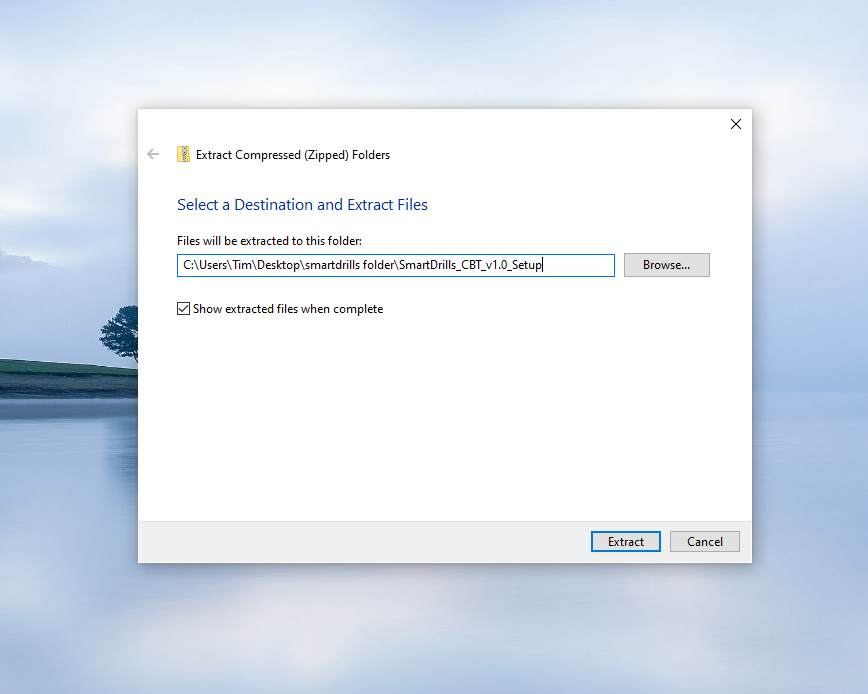
Extract and run the installer
Right-click the ZIP file and choose Extract All. Inside you'll find SmartDrills_CBT_v1.0_Setup.exe. Double-click it to start the installation.
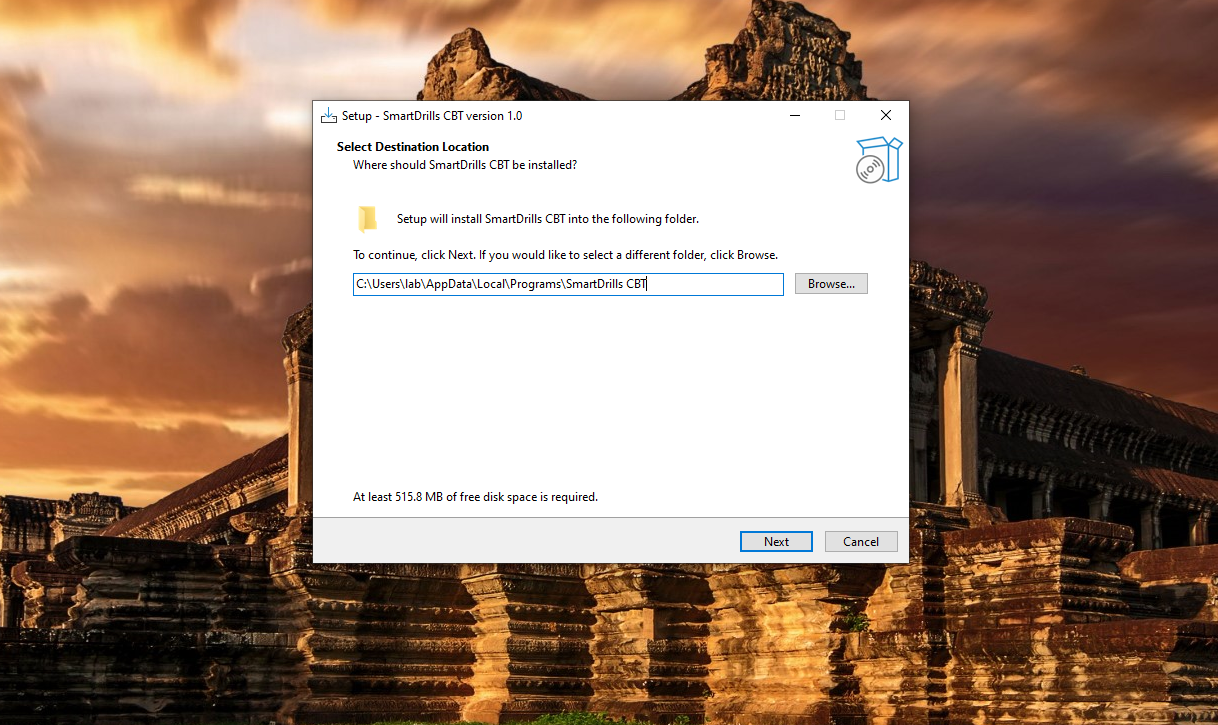
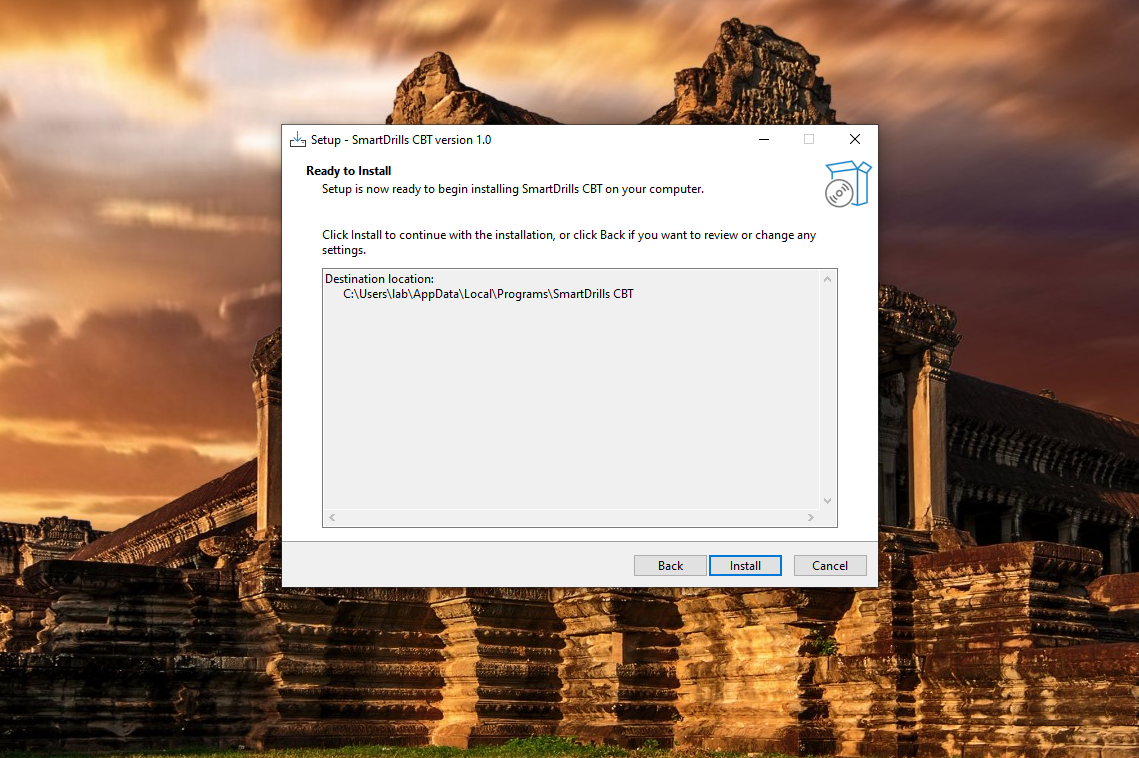
Finish setup and launch
Follow the setup wizard — the default settings are fine. Click Finish and SmartDrills will open. The first launch takes about 30 seconds while the AI loads.
Before you install
Do I need internet to use SmartDrills?
No. Everything runs offline. Once installed, you never need an internet connection — not for practice exams, not for the AI tutor, not for reviewing your results. Internet is only needed once, to download the installer.
How many students can use one install?
Unlimited. One license covers one machine. That machine can host as many student accounts as you need — perfect for a family PC, computer lab, or cyber café. Each student gets their own login, progress, and history.
Is my data safe?
Yes. All student accounts, exam history, and progress are stored locally on your computer. Nothing is uploaded anywhere. No analytics, no tracking, no cloud.
Why does my browser or Windows warn about the download?
Two things can happen. Chrome may flag the ZIP because it's new and hasn't been widely downloaded yet — click Keep in the downloads bar. Windows will then show a blue "Windows protected your PC" screen when you run the installer — click More info → Run anyway. Neither warning means the app is unsafe. They appear for every new app until it's widely distributed and code-signed.
Will it work on Mac or Android?
Not yet — both are in development. Windows is available today. Use the platform toggle at the top of this page to see the current status of each.